


Why use Capsule CRM? #
Flowmatix integrates with Capsule CRM to streamline lead capture and improve customer relationship management. By combining Flowmatix’s AI-powered chatbot with Capsule CRM’s easy-to-use CRM tools, businesses can automatically capture leads, qualify prospects, and manage follow-ups. This integration ensures real-time synchronization, helping sales teams maintain an organized and up-to-date pipeline while improving the efficiency of their customer engagement strategies.
Benefits of using Capsule CRM: #
- Automated Lead Capture: Instantly capture leads through chatbot interactions and sync them directly with Capsule CRM.
- Efficient Lead Qualification: Automatically qualify leads based on chatbot conversations and update their status in Capsule CRM.
- Real-Time Data Sync: Keep customer information updated in Capsule CRM, ensuring accurate and timely insights.
- Increased Sales Efficiency: Automate routine tasks like follow-ups and data entry, allowing sales teams to focus on closing deals.
Step 1 of 4: Login to Flowmatix Account and Select Application to Integrate
- Login to your Flowmatix account. Now, select and click the Bot you want to integrate with Capsule CRM. Click on the ‘Integrate tab.’
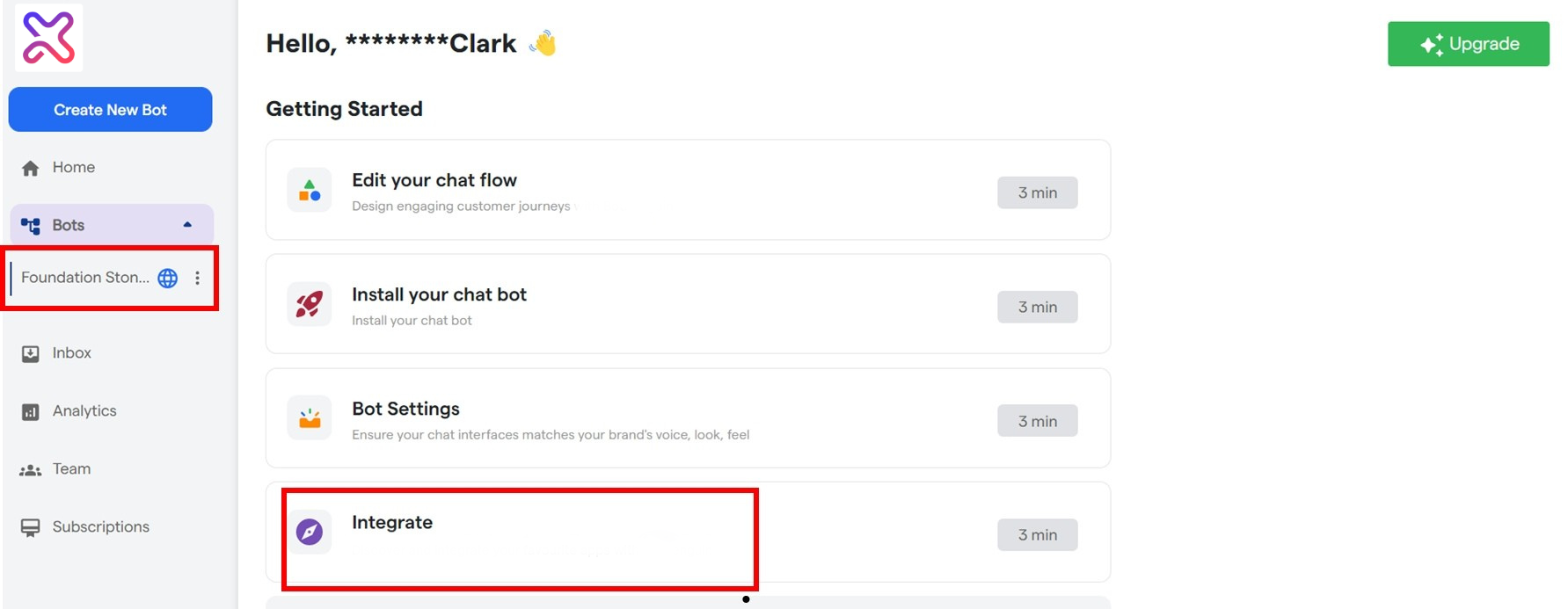
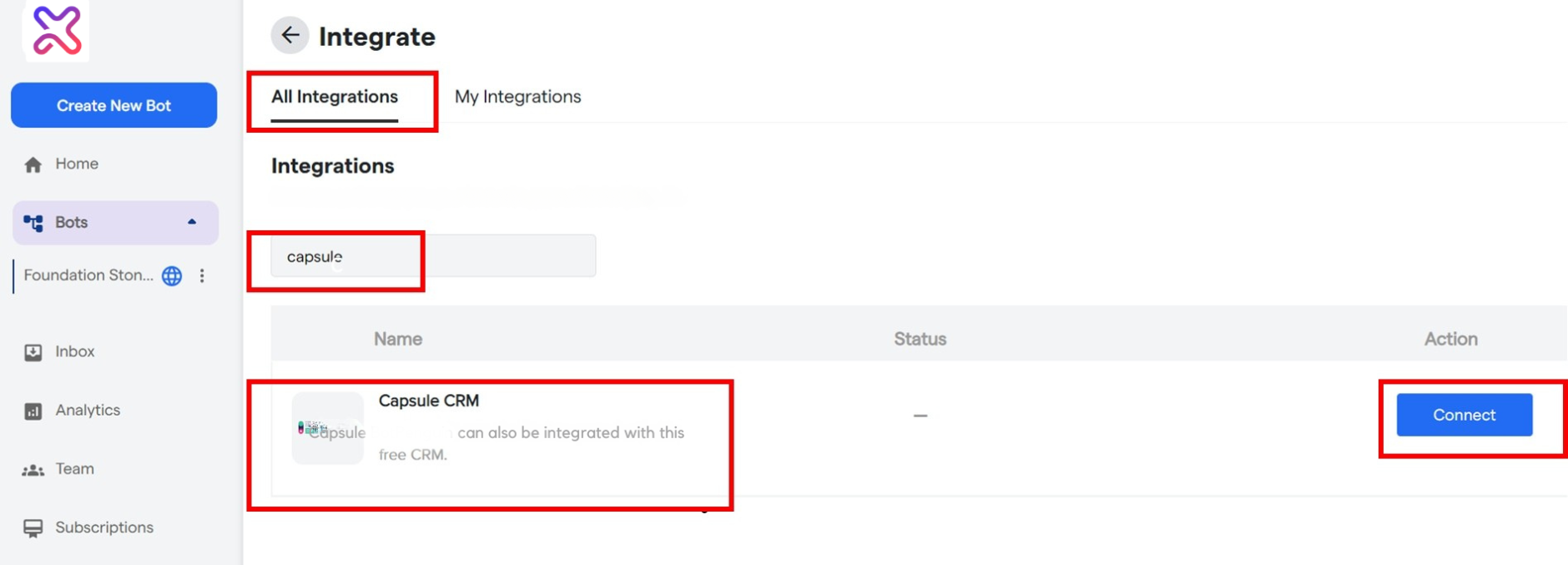
- The Integrate Window Will Open up. Select the ‘All Integrations’ Tab.
- A list of all native integrations for Flowmatix will be available in this window.
- Now find Capsule CRM by:-
- Either by scrolling down the list or,
- by typing ‘Capsule’ in the Search Box with the placeholder “Search Integration By Name.
- Now Click On The ‘Connect’ Button As Shown
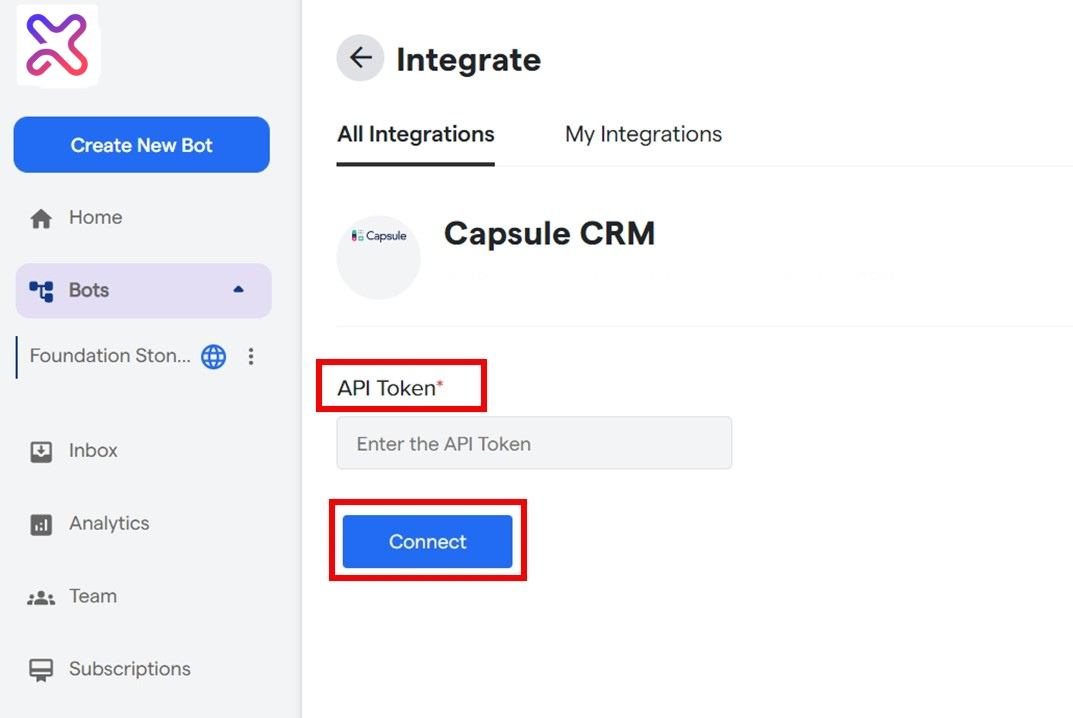
- An Interface, as shown below, will open up. Here, you will be asked to enter the API Token that you will get by logging into your Capsule account.
Step 2 of 4: Find your Authorization Key/Token in App Account #
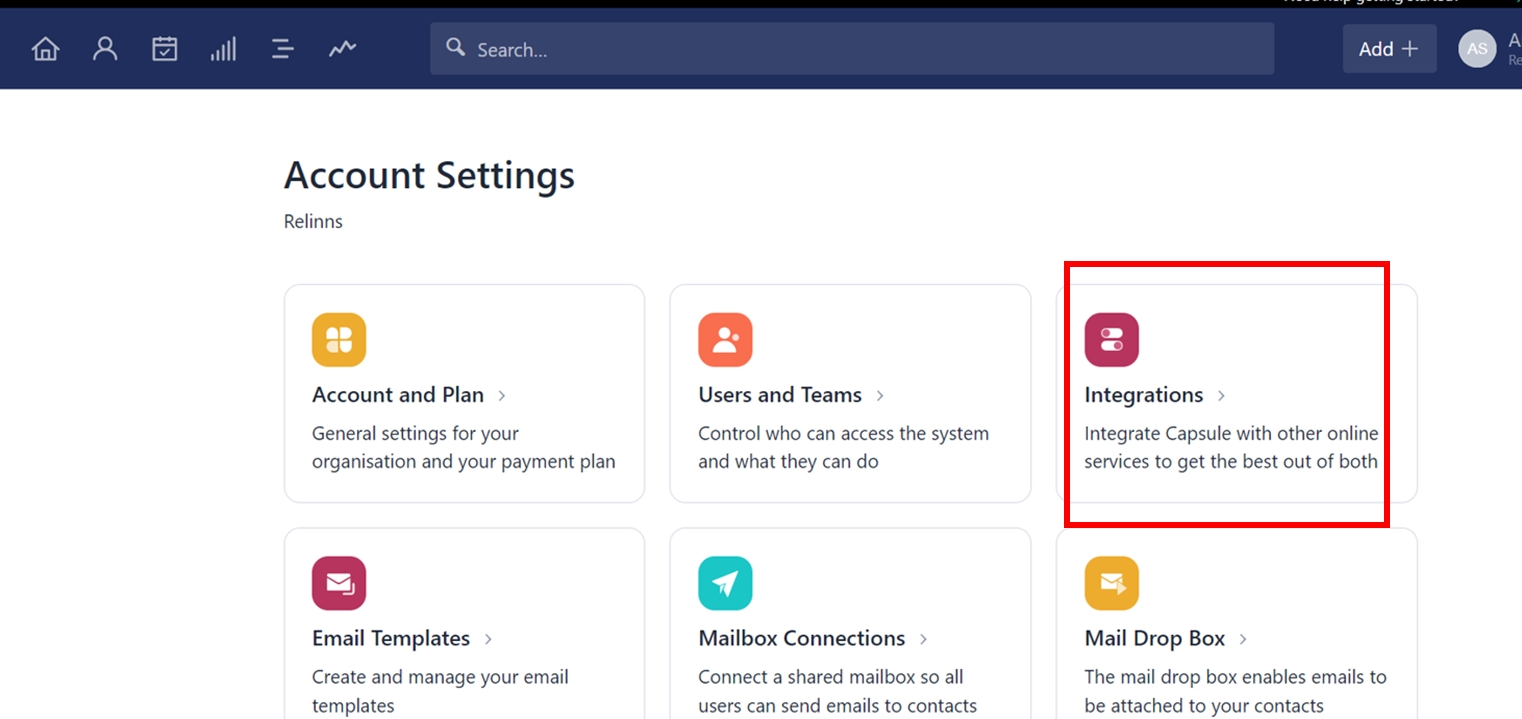
- To get the API Token, login to the Capsule CRM account and on the main dashboard, click on the dropdown button next to your profile name on the top-right corner and then click on ‘Account Setting’ tab.
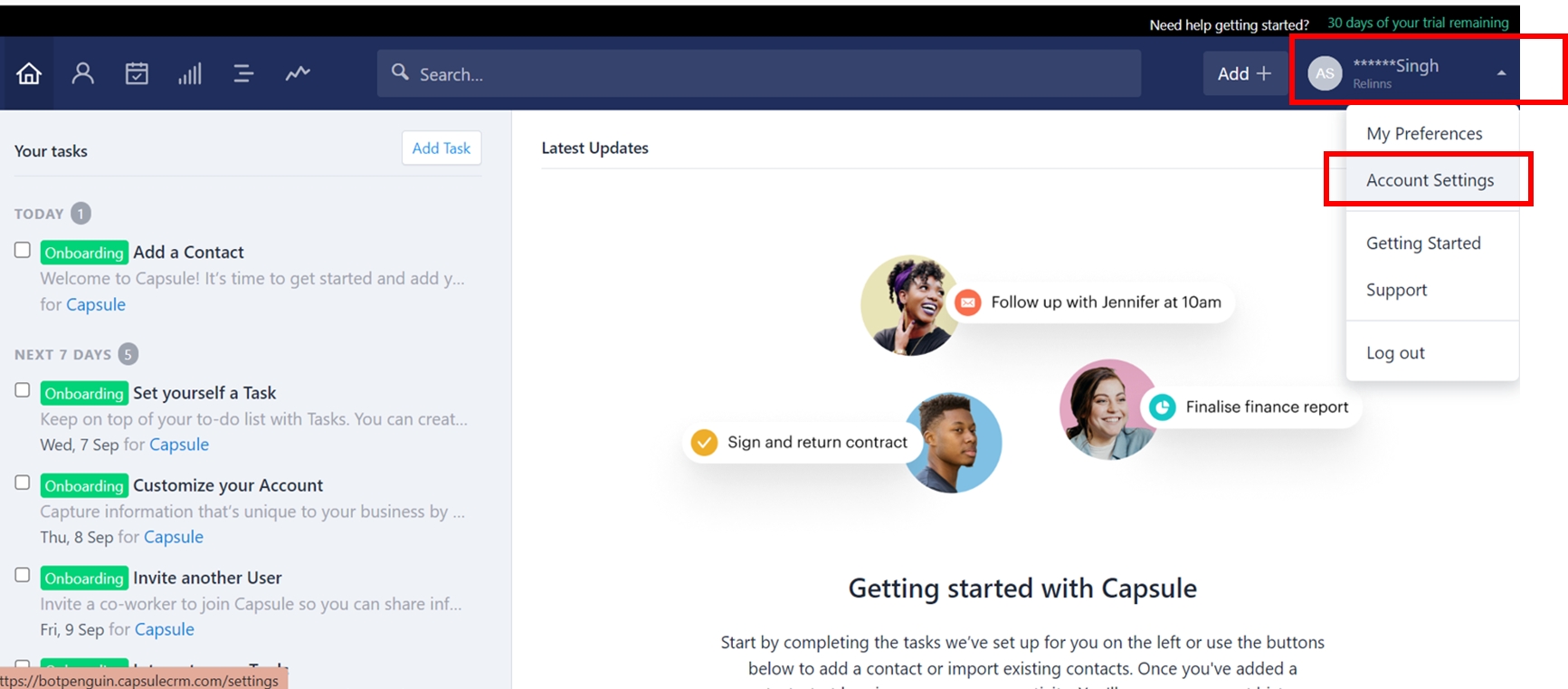
- Click on Integrations
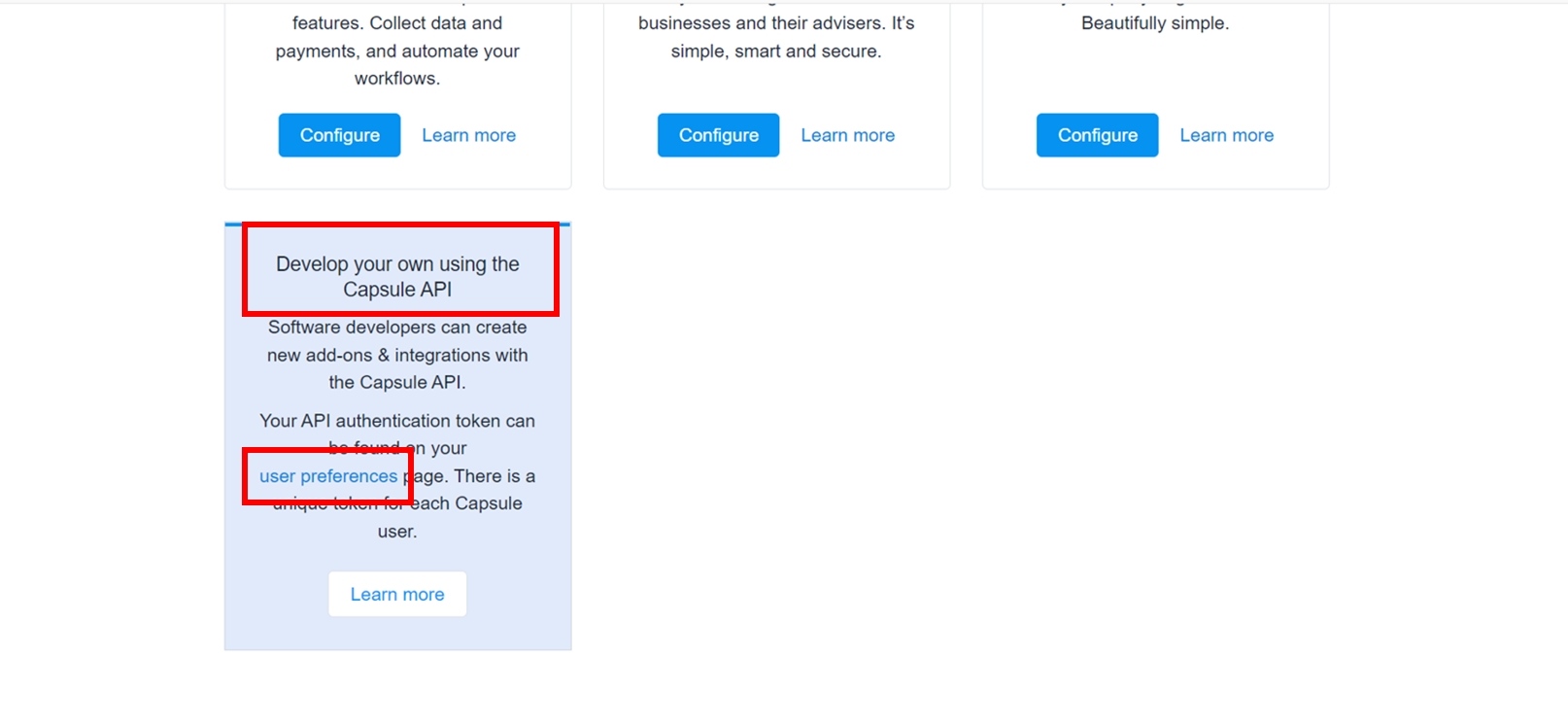
- On the ‘Integrations’ page, scroll down to the bottom to locate ‘Develop your own using the Capsule API’ and click on ‘user preferences’ to find out your API Token.
- Copy your API Token key
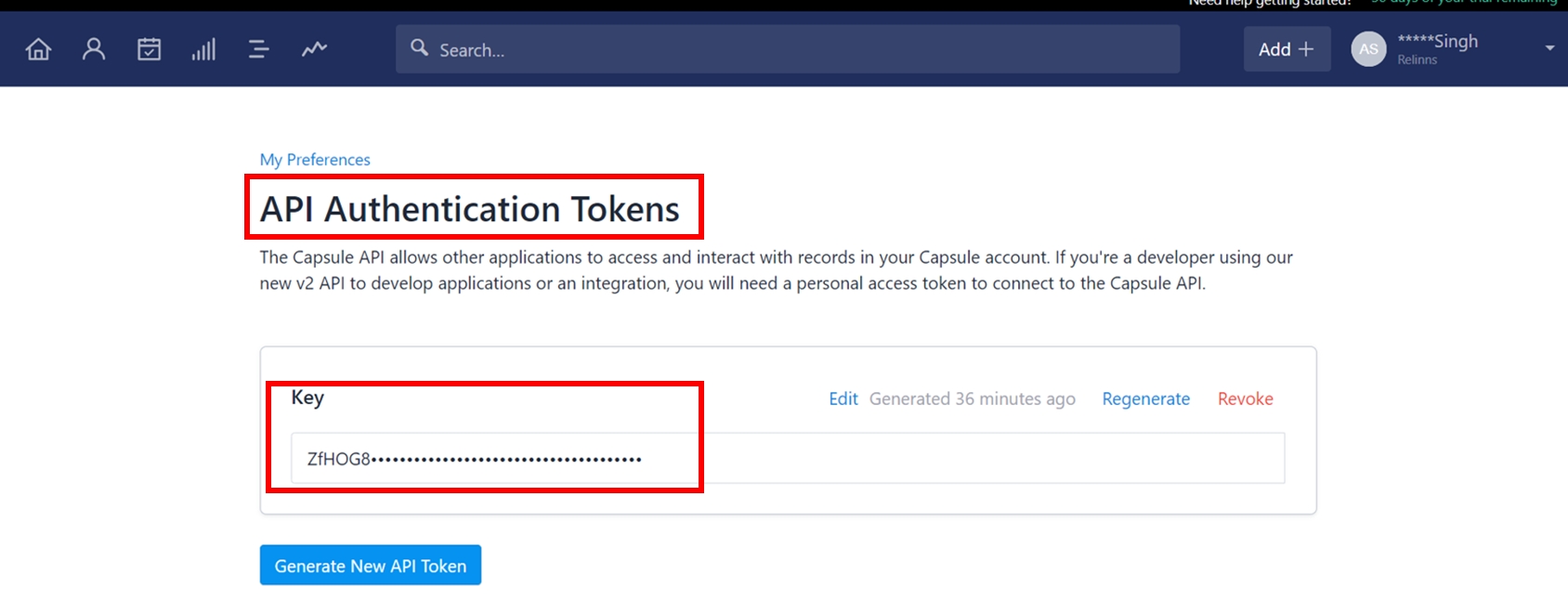
Step 3 of 4: Enter Authorization Details and establish connection with your App #
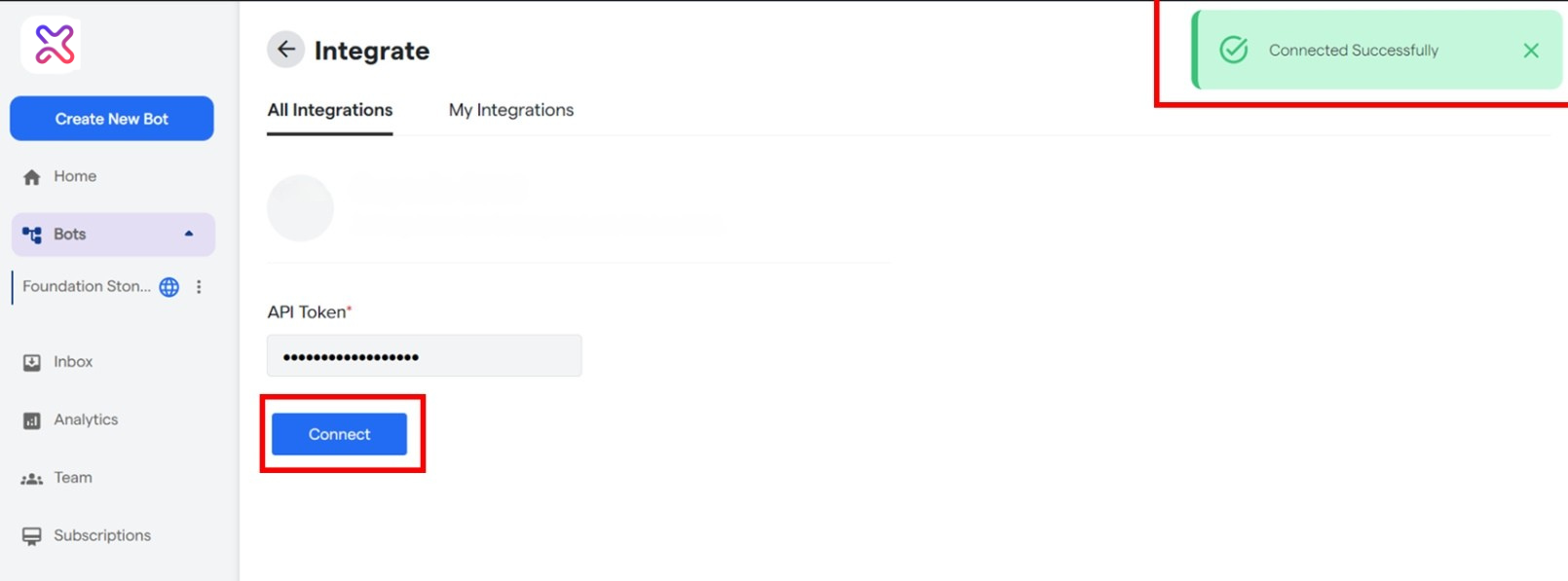
- Enter Capsule API Token and click the ‘Connect’ Button to complete integration of Flowmatix with Capsule CRM.
- If you have entered all the details correctly, you will see a notification that says, “Connected Successfully.”
That’s all, it’s done!
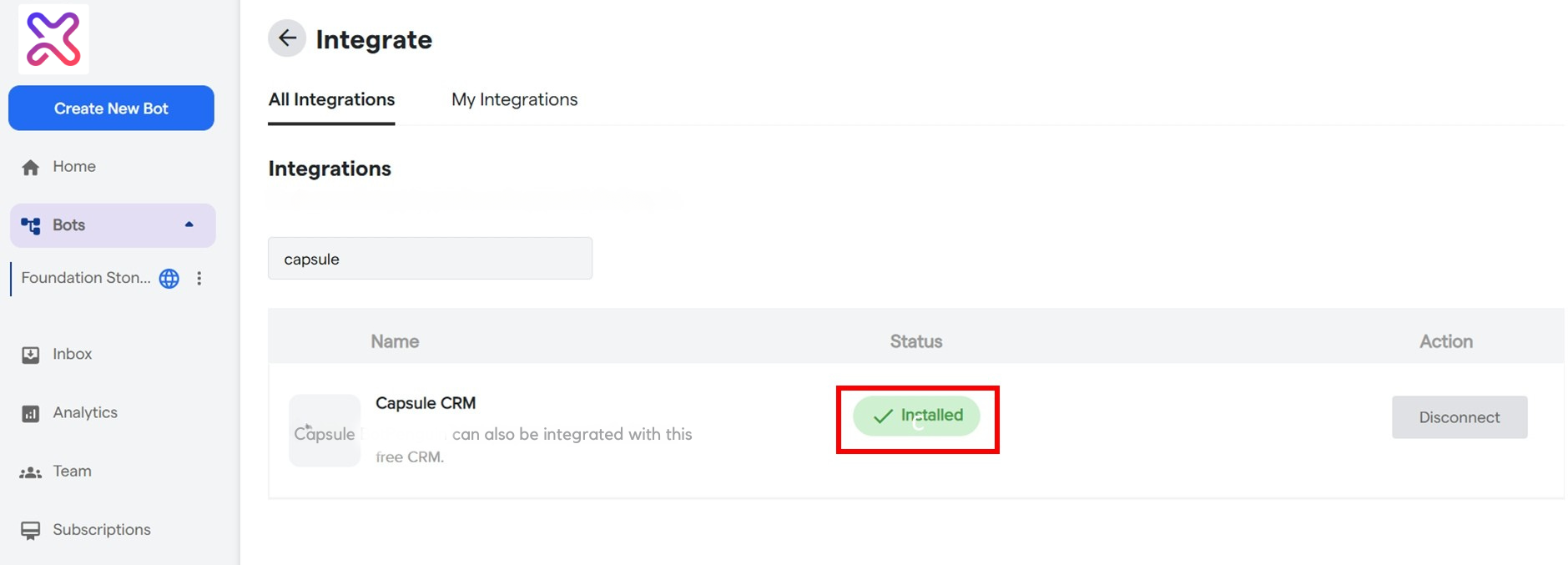
- Also, your Capsule CRM integration will show the message Installed in the Integration List.
Step 4 of 4: Test your Integration Set up with Data #
Once you have established a connection between Flowmatix and Capsule CRM, you are ready to go for your first test lead. You can test your integration setup by creating a dummy lead on the bot. This lead should appear in your Flowmatix dashboard as well as in the Capsule you have integrated.
Still Not Working, Let’s Troubleshoot! #
If you are not getting dummy lead from your Bot to Capsule, it may be due to the multiple reasons:
- Wrong Authorization Details added- You will be required to check and see if all the authorization credentials such as API Token, API key, and/or URL has been entered correctly.
- Free plan- You are not subscribed to the paid plan on Flowmatix as integration works only in paid plan.