


- This page contains the information on how can you create the WhatsApp chatbot for your business.
Here is the process to create the WhatsApp Bot using Flowmatix’s Automated Onboarding.
This document will guide you through the step-by-step process of creating the Flowmatix WhatsApp Bot using the WhatsApp Business Cloud API. Following these instructions, you can set up your WhatsApp Bot and integrate it with the Flowmatix platform.
Step 1: Check for Pre-requisites #
Before you begin, ensure you have the necessary prerequisites in place, such as access to the Flowmatix platform, WhatsApp number, etc.
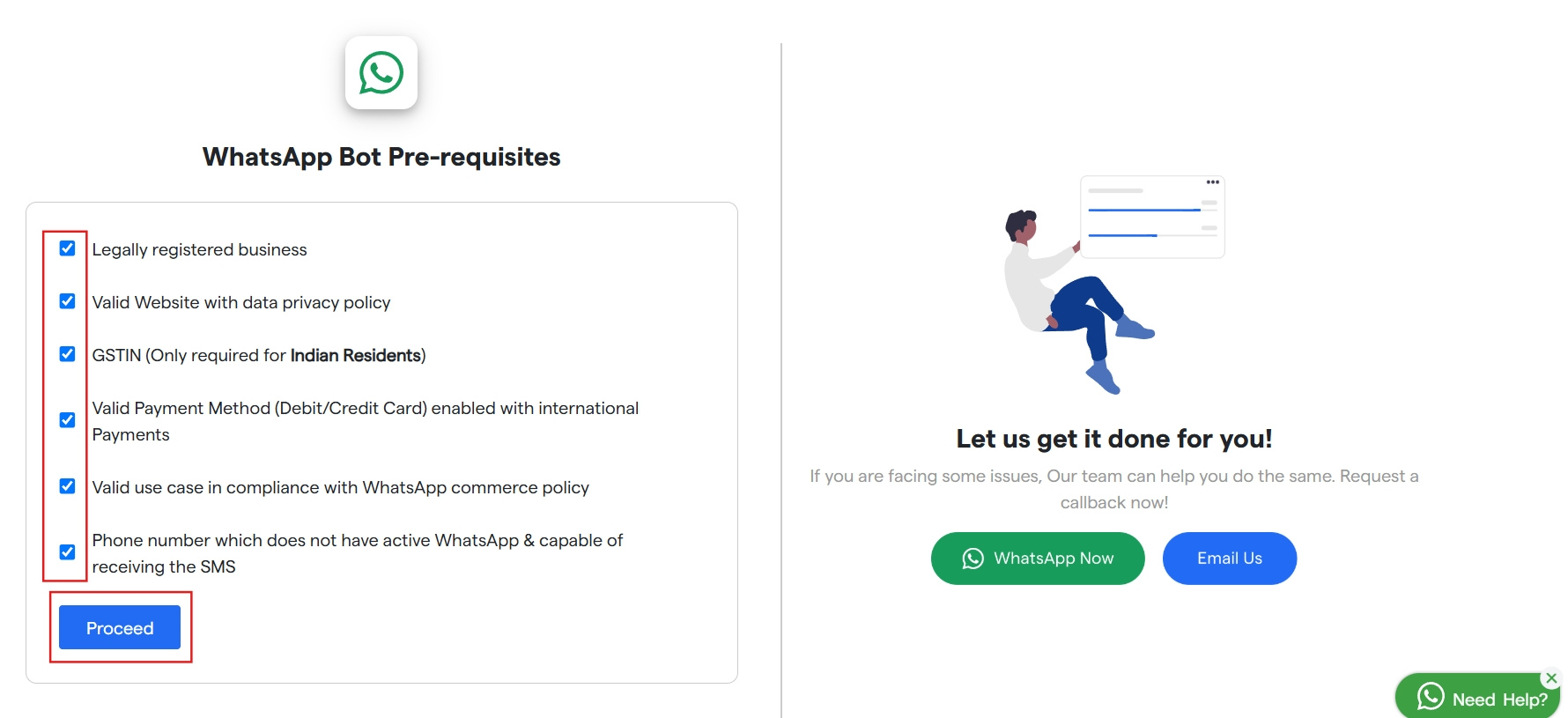
Pre-requisites
Before you start creating the WhatsApp bot, Make sure that you have
- A phone number that is
- Not registered on WhatsApp or WA Business App.
- Active & capable of receiving SMS.
- Registered legal business
- An active website with a valid privacy policy
- Business use case compliant with WhatsApp and Meta commerce policy.
- A valid payment method (Debit or Credit card) capable of making international payments to Meta for conversation charges.
- GSTIN Number, Only if the business is registered in India.
If you have all of the above checked, You are good to start with WhatsApp Cloud API Bot.
Please note that a single mobile number can only be utilized on one of the WhatsApp services at a given time, namely WhatsApp, WA Business, or WhatsApp Business API. If you wish to use your existing number, you must remove your account from one service before using it on another.
Step 2: Create a WhatsApp bot & go through the WhatsApp Automated onboarding process #
Register your bot on Flowmatix #
1- Login to your Flowmatix Portal and Click the “Create Bot” button on the top right.
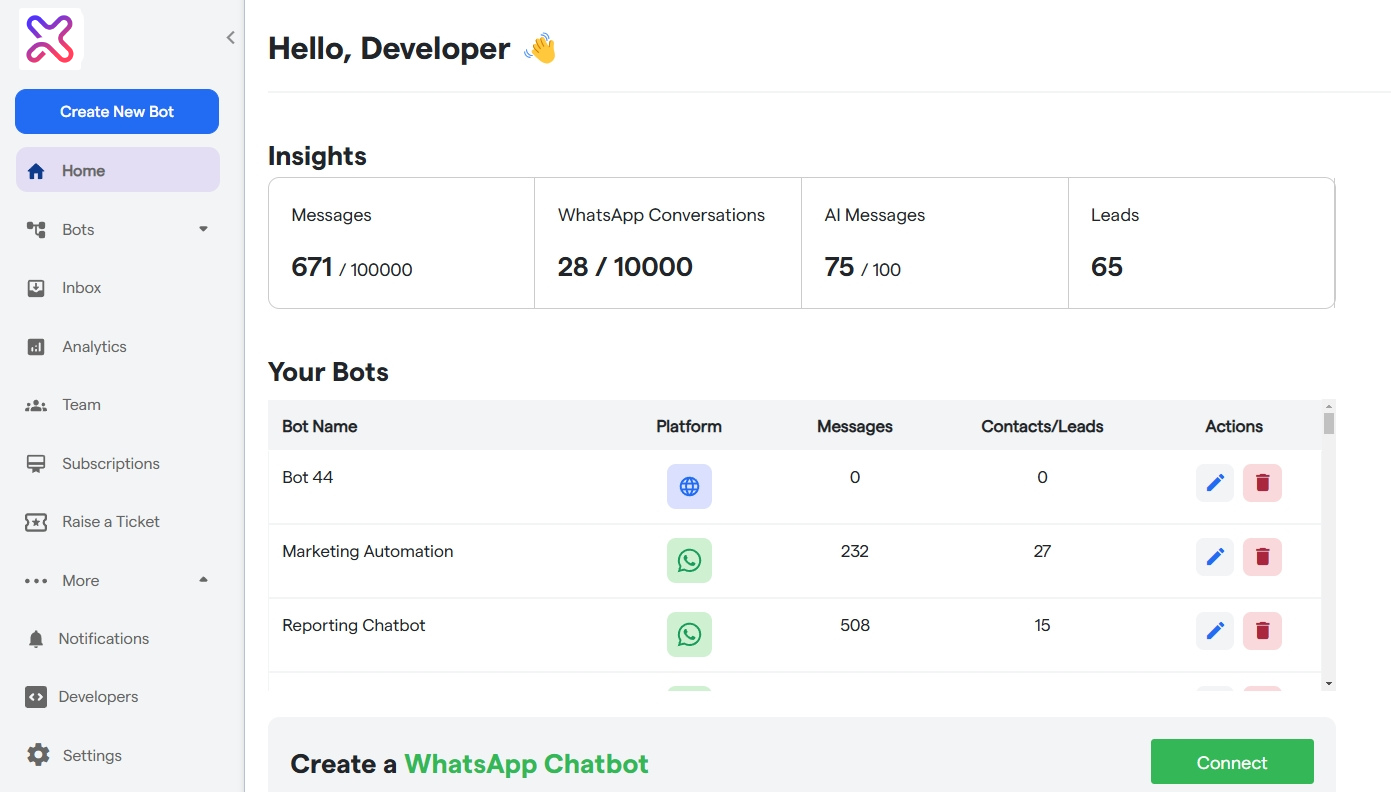
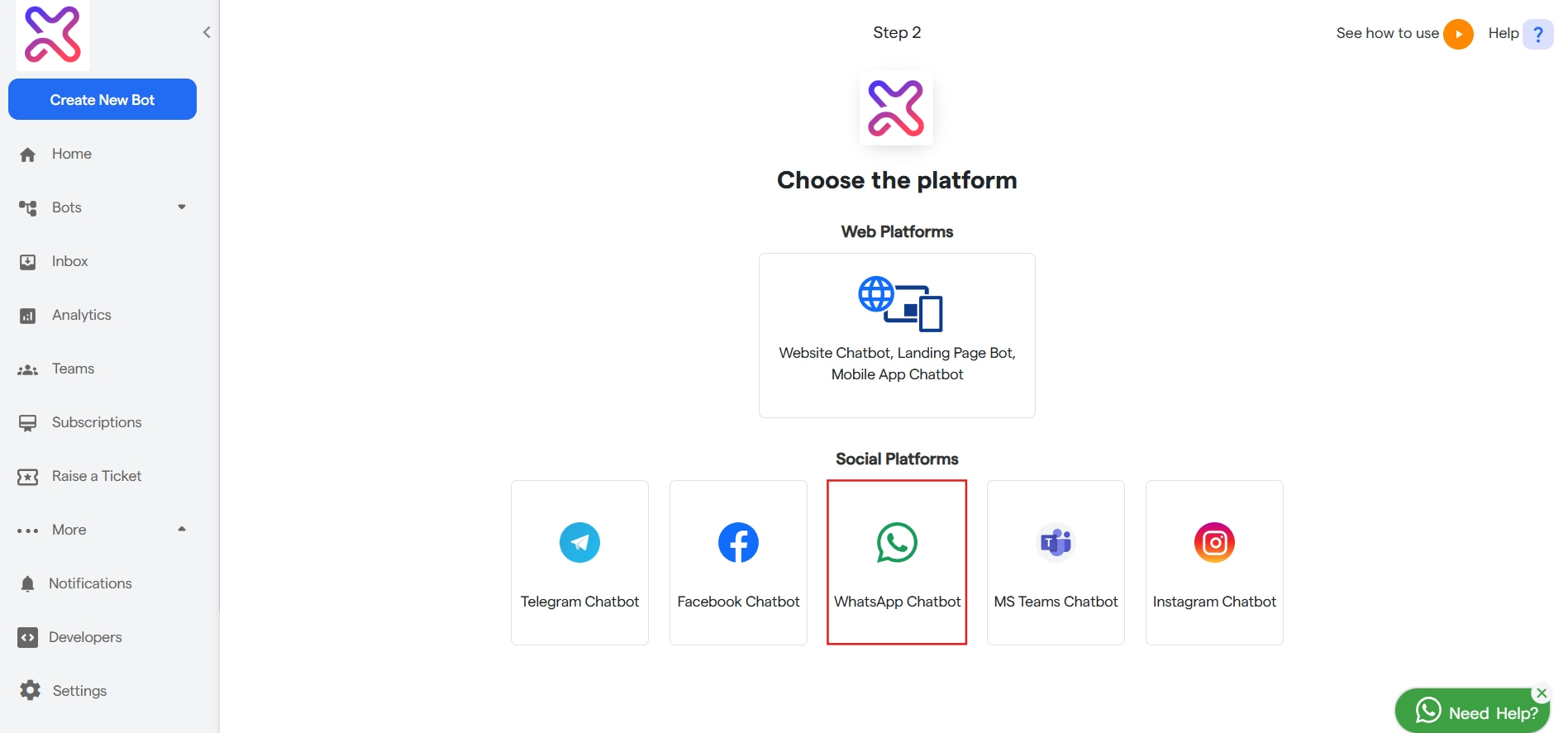
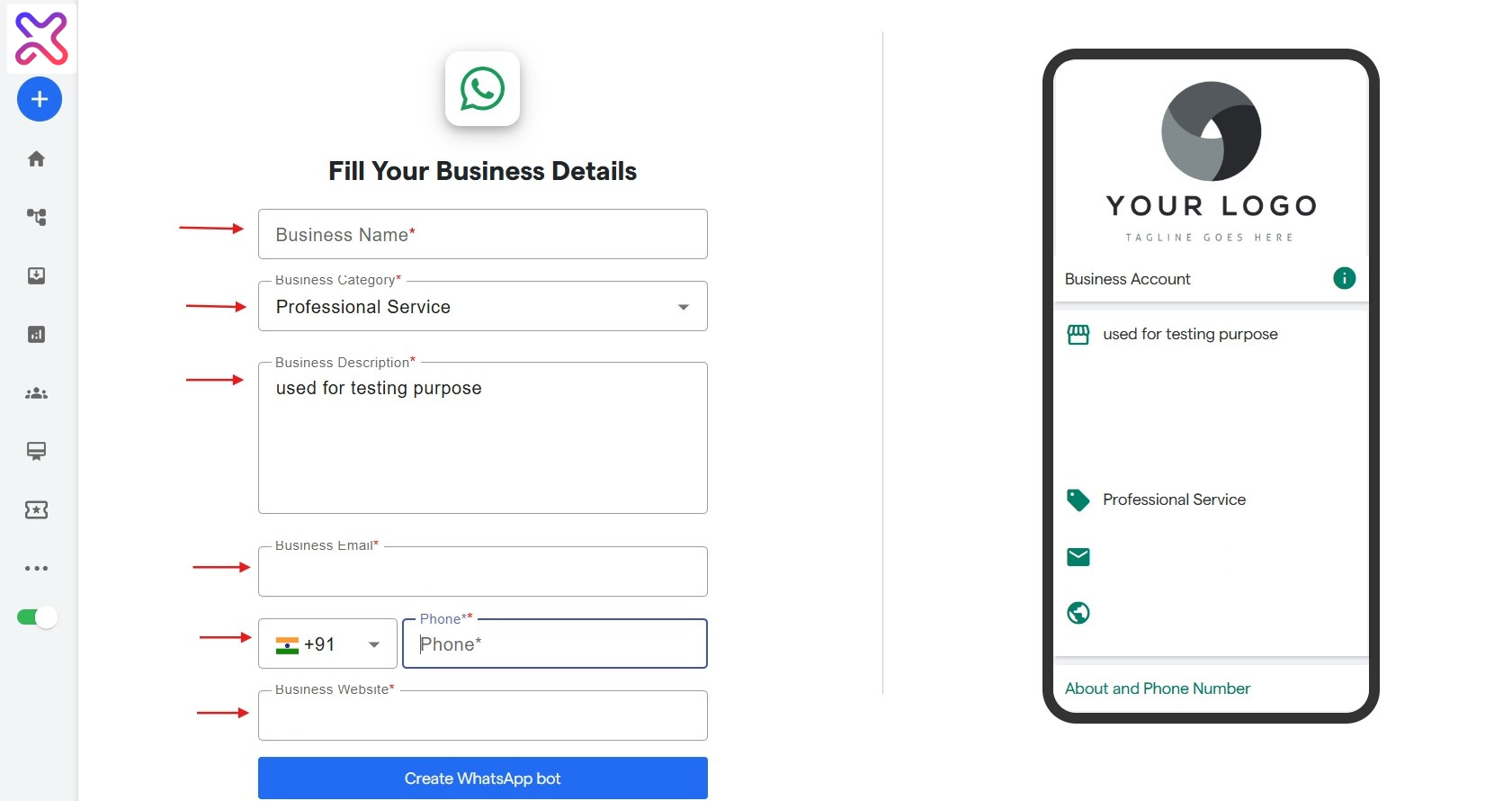
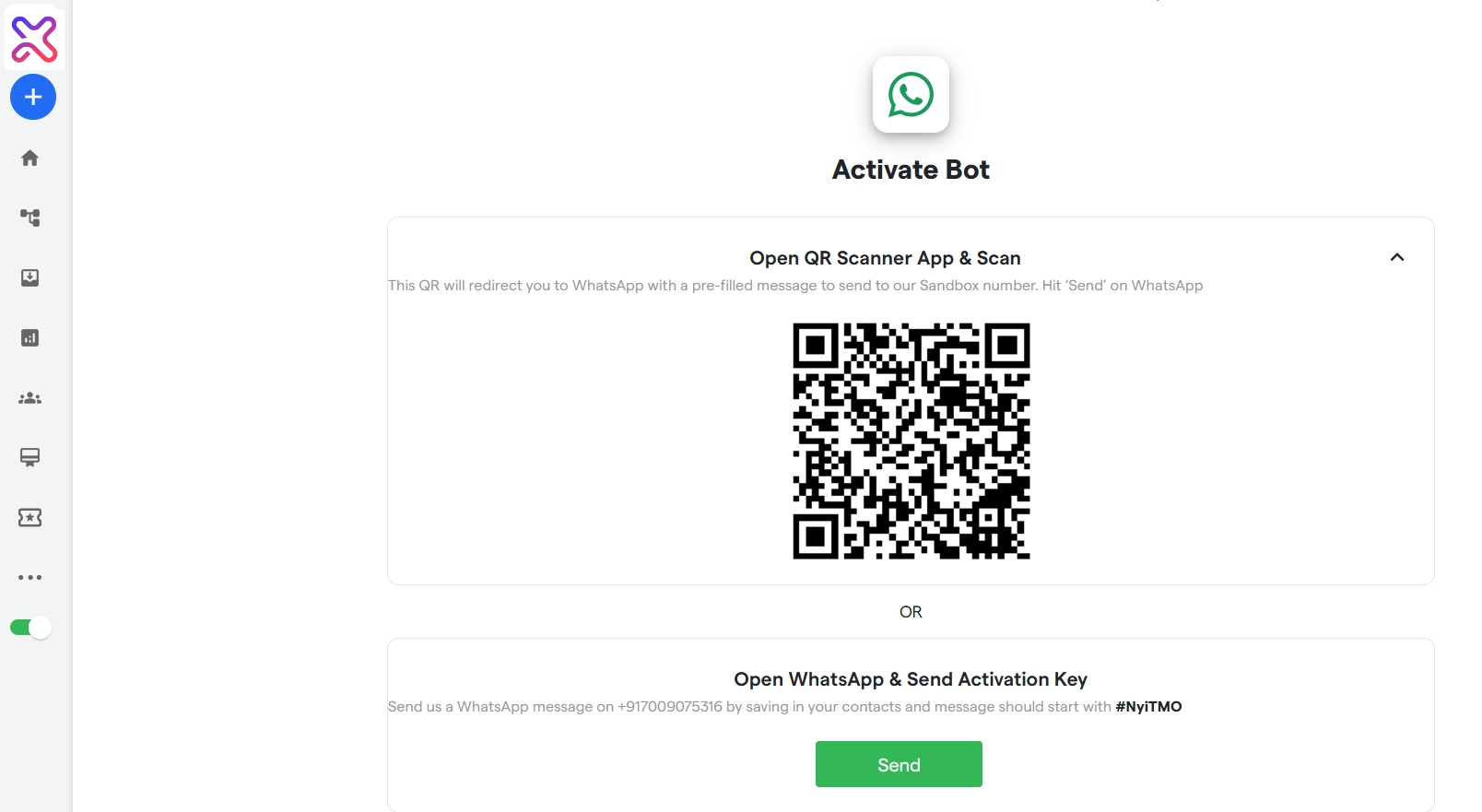
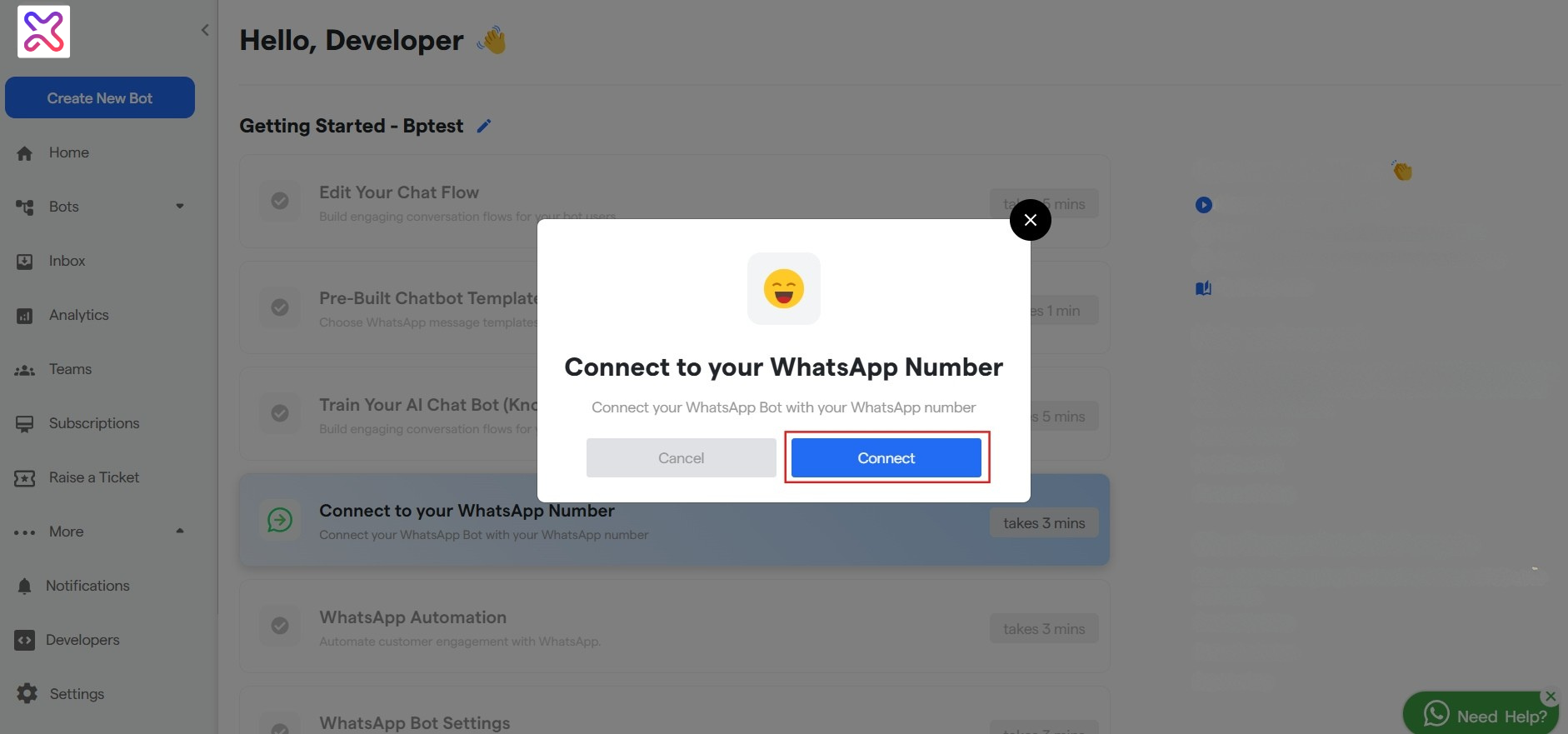
Complete Meta Automated onboarding #
1- Select all the pre-requisite and click “Proceed”
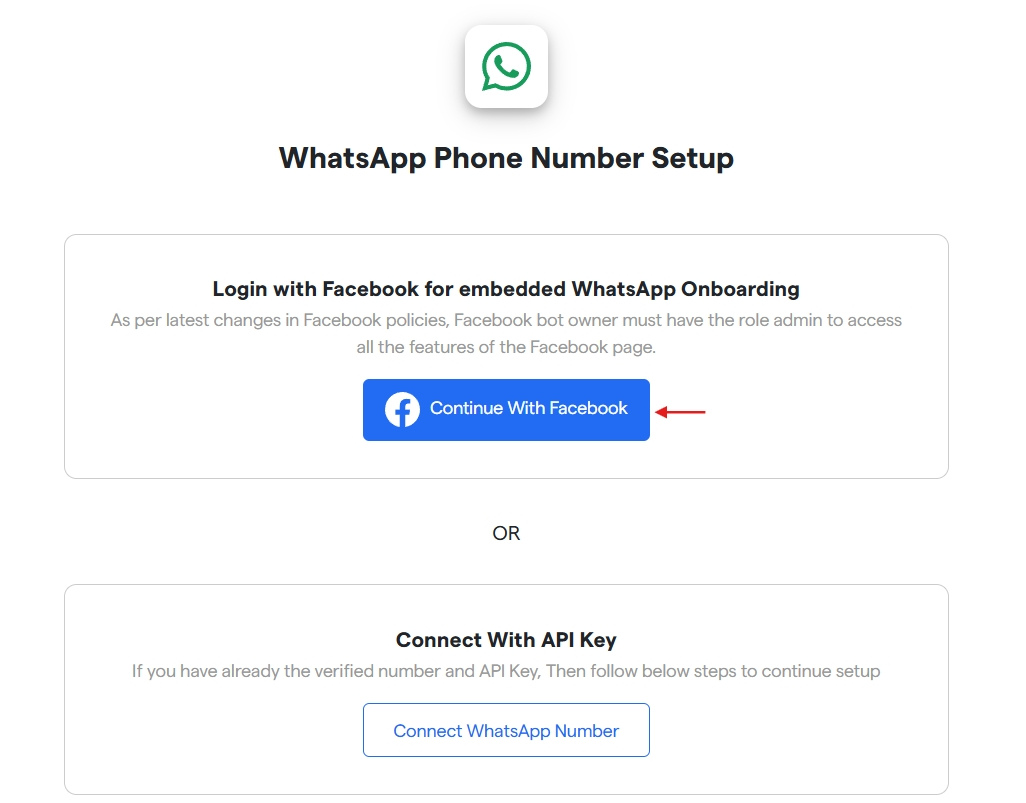
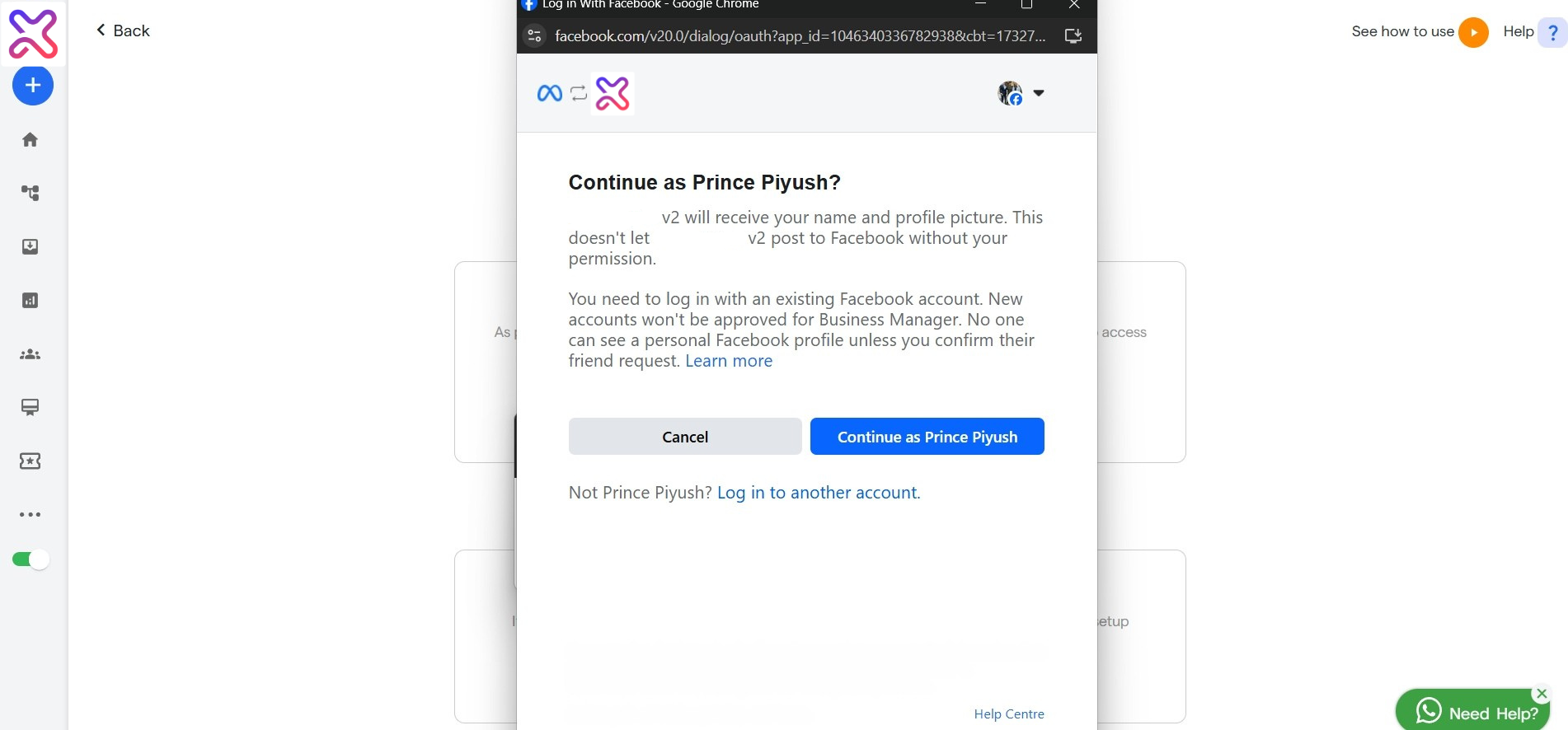
4- Upon successful completion, Your bot will be connected to WhatsApp. But as a last step, You have to update your payment method.
Step 3: Update Payment Method to WhatsApp #
In the Business Manager, update the payment method for your WhatsApp Business Cloud API account to enable seamless transaction processing.
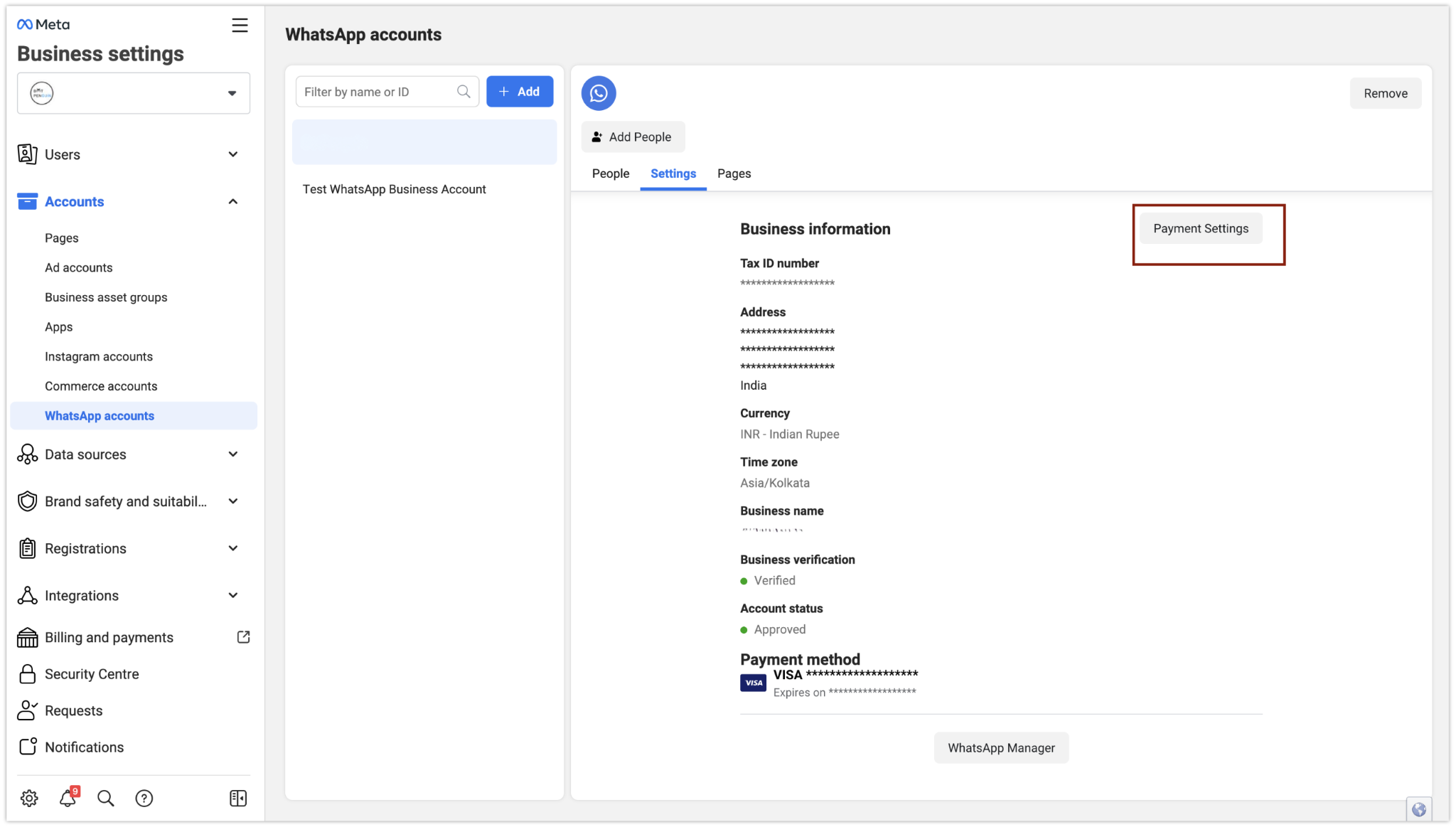
3.1 Access WhatsApp Account Settings
In the “Meta Business Manager,” locate and click on the “Payment Setting” button for your WhatsApp Account.
3.2 Navigate to Billing and Payments Page
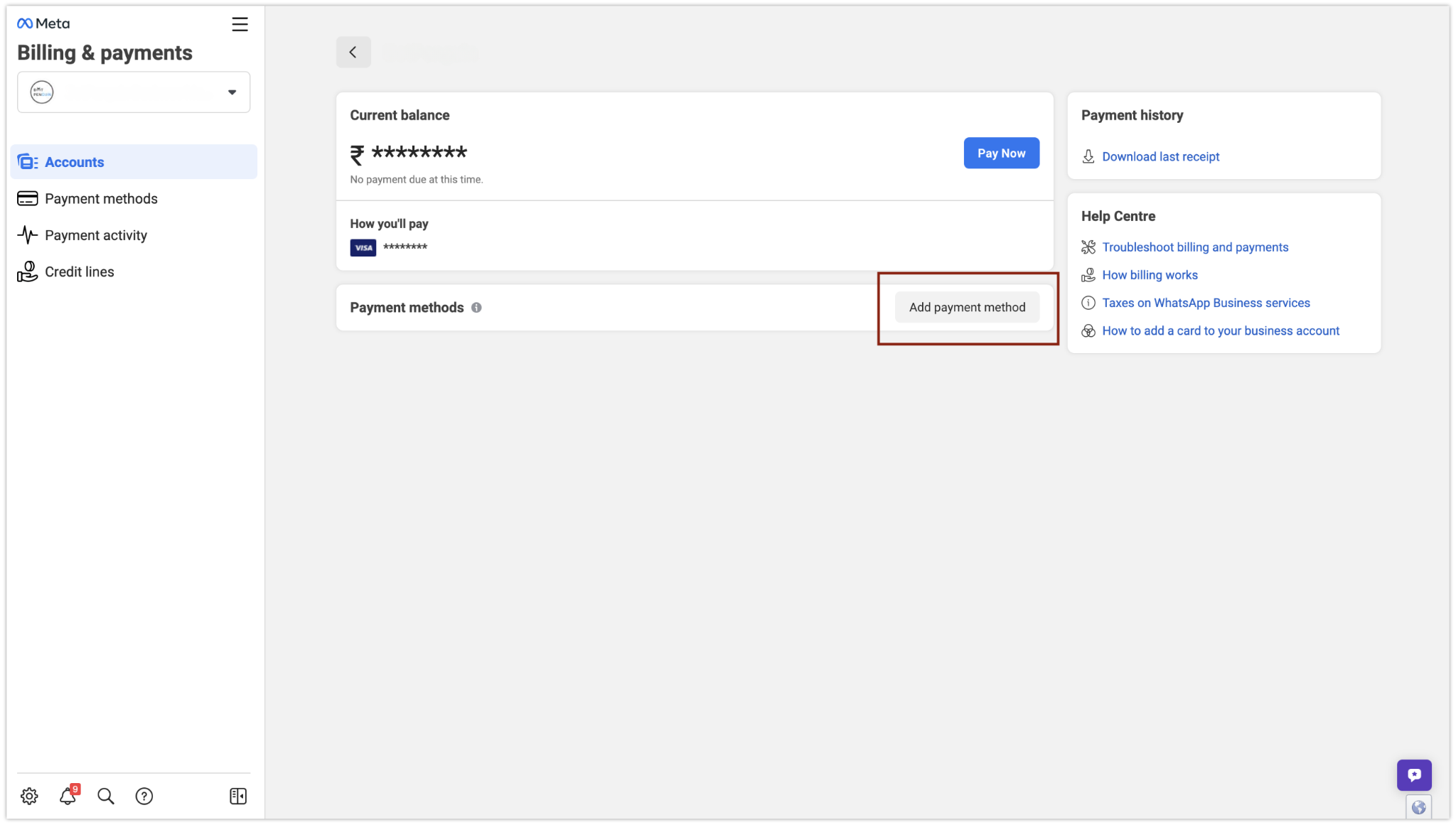
On the “Billing and Payments” page, click on the “Add Payment Method” option to add a new payment method.
3.3 Select Payment Method Type
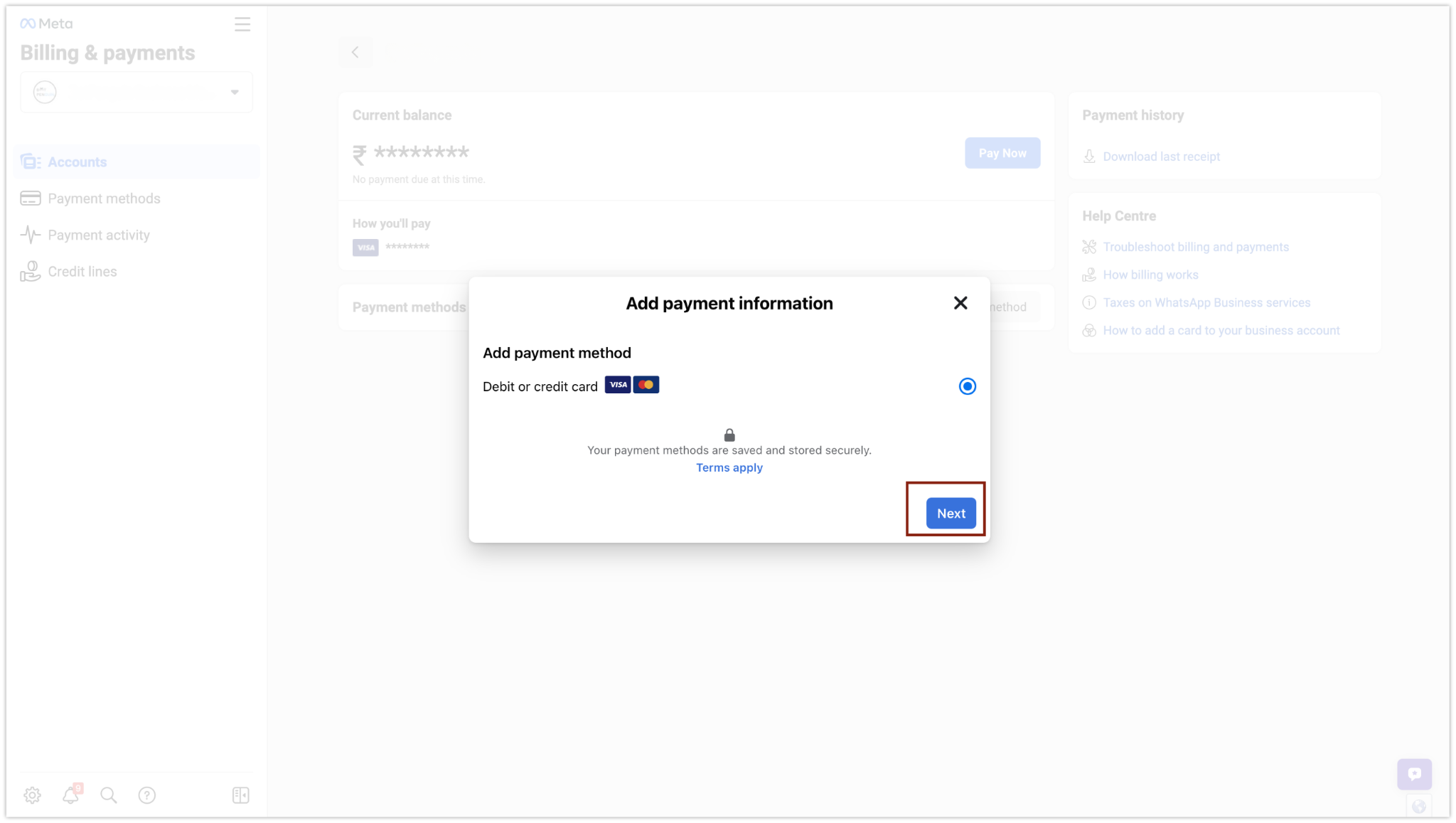
Choose the payment method type that you want to use for your WhatsApp account.
Select Payment Method Type
3.4 Enter Payment Details
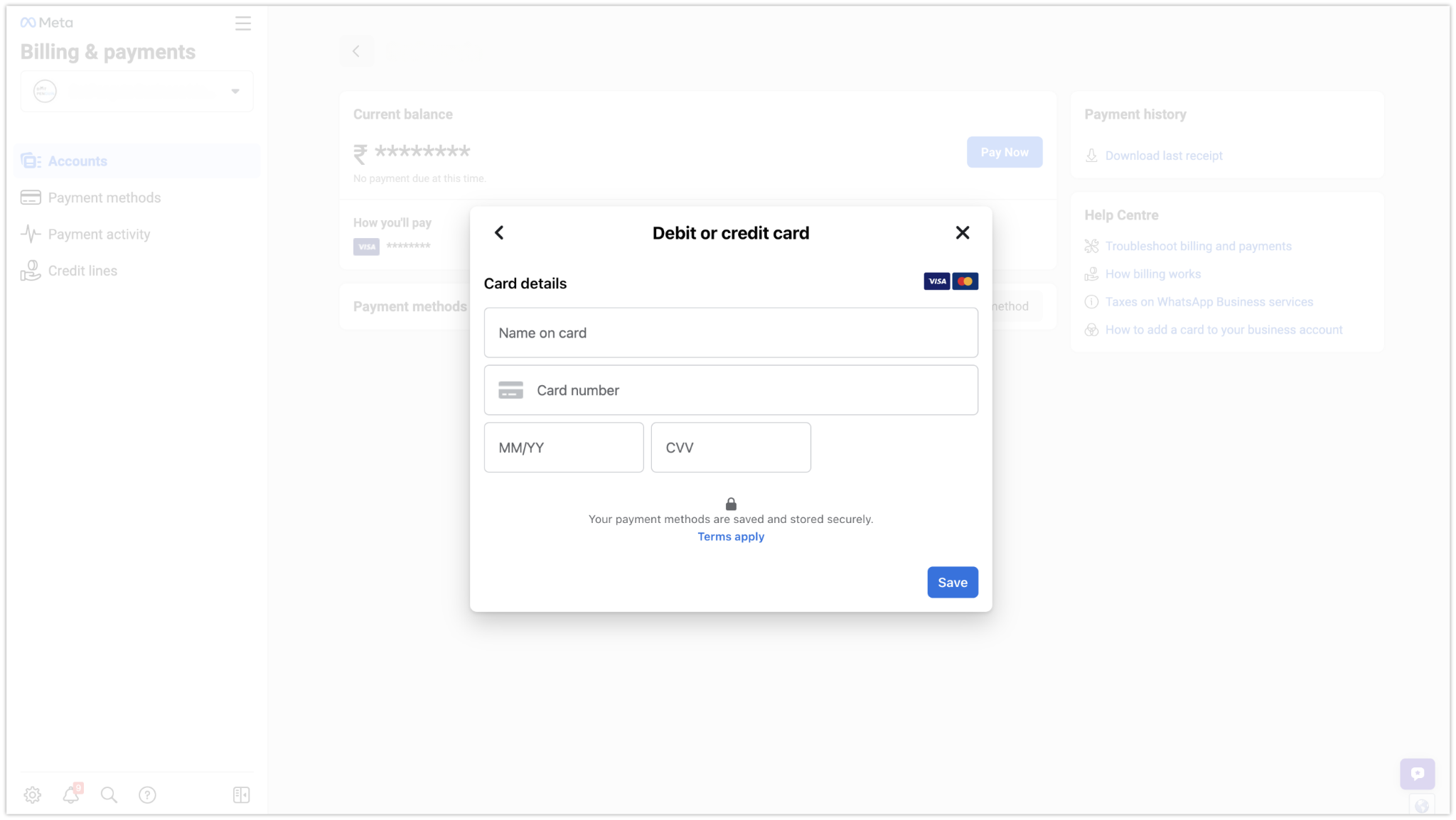
Enter the necessary payment details based on the selected payment method.
Enter Payment Details
3.5 Verify Payment Method
Once you have entered the payment details, proceed with the verification process.
3.6 Update Business Information
- After successful verification, make any necessary updates to your business information.
- You have successfully updated the payment method on your WhatsApp account.
Congratulations! You have successfully created the Flowmatix WhatsApp Bot using the WhatsApp Business Cloud API and integrated it with the Flowmatix platform. Your WhatsApp Bot is now ready to interact with users and provide automated responses.
Please note that specific steps and requirements may vary based on updates and changes in the Flowmatix and WhatsApp Business Cloud API platforms. If you encounter any difficulties during the process or have further questions, please refer to the official documentation of Flowmatix and WhatsApp Business Cloud API, or contact their support teams for assistance.